Status pages
Management methods
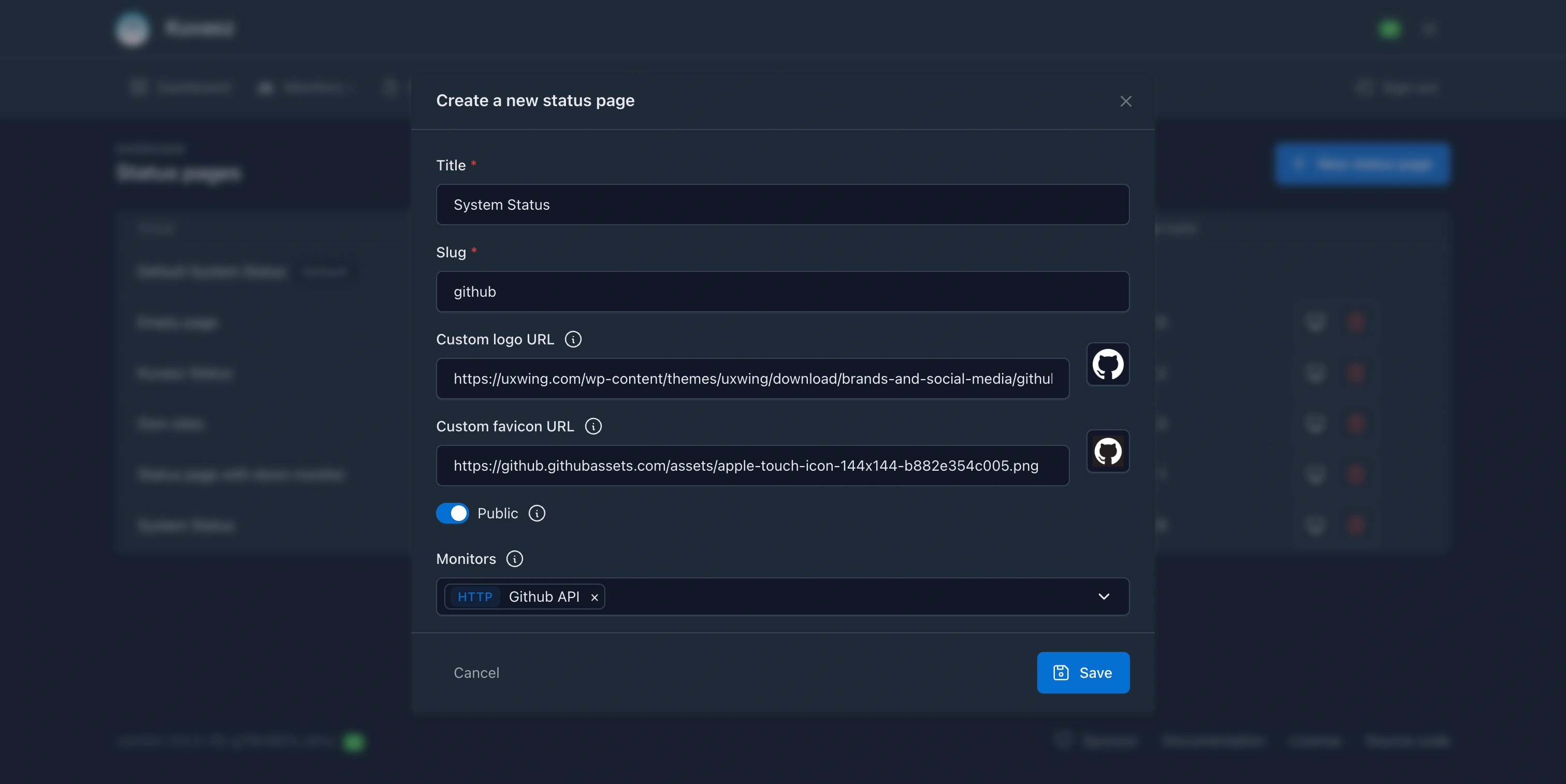
If you navigate to the Web UI of Kuvasz, you can create a new status page on the Status pages page, by clicking the "+ New status page" button in the page header.
# Default status page configuration
default-status-page: # (1)!
  public: true
  title: "Status - Kuvasz Uptime"
  custom-logo-url: "https://example.com/logo.png"
  custom-favicon-url: "https://example.com/favicon.png"
status-pages: # (2)!
  - title: "Example Status Page" # (3)!
    slug: "example-status" # (4)!
    public: true # (5)!
    custom-logo-url: "https://example.com/logo.png" # (6)!
    custom-favicon-url: "https://example.com/favicon.png" # (7)!
    monitors: # (8)!
      - "http:My monitor 1"
      - "http:My monitor 2"
      - "push:My backup 1"
      - "icmp:My ICMP Monitor"
      - "tcp:My TCP Monitor"
      - "dns:My DNS Monitor"
    categories: # (9)!
      - "Payments"
    display-categories: true # (10)!
  # ... other status pages
- The default status page has a special section in the YAML configuration, since you can only have one default status page. Also, it's only configurable from YAML, you can't create or modify it from the Web UI or through the API.
- The
status-pagessection contains a list of custom status pages. - The
titlefield is the title of the status page, it will be displayed in the browser tab and also on the page itself. - The
slugfield is the URL slug of the status page, it will be used to access the page. - The
publicfield determines whether the status page is public or private. - The
custom-logo-urlfield is the URL of the custom logo to be displayed on the status page. - The
custom-favicon-urlfield is the URL of the custom favicon to be used for the status page. - The
monitorsfield is a list of monitors to be displayed on the status page. You can reference monitors by their type and name, in the format<type>:<name>, e.g.,http:My HTTP Monitor,push:My backup 1,icmp:My ICMP Monitor,tcp:My TCP Monitor,dns:My DNS Monitor. - The
categoriesfield is a list of monitor categories. Every monitor belonging to one of them is displayed on the page, in addition to the ones listed undermonitors. - The
display-categoriesfield decides whether the monitors are shown grouped into their categories. It only affects the rendering, not which monitors the page contains.
Consequences of describing your status pages as YAML
Be aware that if you define your status pages via YAML, you cannot use the UI, or the API to modify them, you can only view them there (read-only operations are permitted)!
In this case Kuvasz reads your YAML file on startup, compares the pages in there with the existing ones in the database, and uses the YAML file as the source of truth.
The same applies if you used the UI or the API before to manage your status pages, and you decide to switch to YAML: unless your YAML definition matches the existing status by their name, existing status pages could be deleted or modified.
Restoring from a YAML backup
You can export your status pages from the UI under Settings → Backup & Restore → Export status pages (YAML), or via GET /api/v2/status-pages/export/yaml. To restore that backup later, use Settings → Backup & Restore → Import status pages (YAML) or the POST /api/v2/status-pages/import/yaml API endpoint.
Restoring a backup is destructive
The import reconciles your status pages: pages with the same slug will be updated with the values from the backup, pages that exist in the database but are not in the backup will be deleted, and pages in the backup that do not exist will be created.
- Referenced monitors that no longer exist are skipped (with a warning) instead of failing the import, so import your monitors before your status pages when restoring everything. A reference that is malformed (not in the
<type>:<name>format) is a different case and fails the whole import, so you can catch typos instead of silently dropping them. - Referenced categories are always restored as they are, even the ones no monitor belongs to at the moment, so the order in which you import your monitors and your status pages does not matter for them.
- An empty backup (no
status-pages, or an empty list) is treated as a no-op: it will not delete your existing status pages, guarding against accidentally uploading a truncated or wrong file. To remove the last status page, use the regular delete operation instead. - The import does not switch the status pages to read-only mode; you can keep managing them through the UI and API afterwards.
- If your status pages are currently managed via YAML (read-only mode), the import is disabled: the endpoint returns HTTP 405 and the dropdown item is greyed out. Manage them through your YAML configuration instead.
Before importing, you can enable Simulate only (dry run) in the UI or pass dryRun=true to the API. This runs the import without persisting anything and reports exactly which status pages would be imported, which would be deleted, and which referenced monitors would be skipped, so you can review everything before committing to the import.
What happens if you add one or more status page to your YAML file?
- If there is a status page in the database that is not in the YAML file, it will be deleted.
- If there is a status page in the YAML file that is not in the database, it will be created and added to the database.
- If there is a status page in both the YAML file and the database, and they have the same name, the status page in the database will be updated with the values from the YAML file.
What happens if you provide an empty array for the status pages in the YAML file?
In this case all status pages in the database will be deleted.
What happens if you remove the relevant properties from the YAML file?
By that we mean that your YAML file doesn't contain the relevant property key (i.e. status-pages), or it is not explicitly set to an empty array (see the example below).
# Watch out for the missing property value here.
# This is considered as a missing configuration,
# entries in the database will not be touched,
# external write to the status pages are allowed.
status-pages:
In this case all status pages in the database will be kept (i.e. the ones that were created before via YAML). This is especially useful if you want to restore your status pages from your exported YAML backup, but you want to manage them on the UI in the future.
Changing a status page's name
If you change the name of an existing status page in the YAML file, it will be treated as a new one, and the old one will be deleted.
This section won't go into details about the API or about exact API calls, since it's well documented and must be self-explanatory. You can find more information about the available endpoints and their usage in the API documentation.
However, here are few of the most important endpoints:
GET /api/v2/status-pages– List all status pagesGET /api/v2/status-pages/{id}– Get a specific status page by its IDPOST /api/v2/status-pages– Create a new status pagePATCH /api/v2/status-pages/{id}– Update an existing status pageDELETE /api/v2/status-pages/{id}– Delete a status page by its ID
The default status page
The default status page is a special, built-in status page that automatically includes all enabled monitors. It cannot be deleted or created manually, but you can unpublish it (i.e. make it private) if you don't want to use it.
Title
3.1.0
System status
string
title
The visible title of the default status page, it will be displayed in the browser tab and also on the page itself.
Public access
3.1.0
false
boolean
public
Determines whether the default status page is publicly accessible or not. If set to false, only authenticated users will be able to access it.
Custom logo URL
3.1.0
string
custom-logo-url
The URL of the custom logo to be displayed on the default status page, next to the title. If not set, the default Kuvasz logo will be used.
Custom favicon URL
3.1.0
string
custom-favicon-url
The URL of the custom favicon to be used for the default status page. If not set, the default Kuvasz favicon will be used.
Display categories
4.4.0
true
boolean
display-categories
Whether the default status page displays its monitors grouped into their categories. Turning it off shows a single, ungrouped list instead. It only affects the rendering, see the same setting of the custom status pages for the details.
Custom status pages
You can create multiple custom status pages, each with its own configuration and set of monitors. Custom status pages can be created, modified, and deleted via the Web UI, the REST API, or by defining them in the YAML configuration file.
Title
3.1.0
string
title
The visible title of the default status page, it will be displayed in the browser tab and also on the page itself.
Slug
3.1.0
string
slug
The URL slug of the custom status page, it will be used to access the page. The full URL will be in the format: http(s)://<your-domain-or-ip>/status/<slug>. The slug must be unique among all status pages and can contain only lowercase letters, numbers, hyphens (-), and underscores (_), maximum length is 50 characters.
Public access
3.1.0
false
boolean
public
Whether the custom status page is publicly accessible or not. If set to false, only authenticated users will be able to access it.
Custom logo URL
3.1.0
string
custom-logo-url
The URL of the custom logo to be displayed on the custom status page, next to the title. If not set, the default Kuvasz logo will be used.
Custom favicon URL
3.1.0
string
custom-favicon-url
The URL of the custom favicon to be used for the custom status page. If not set, the default Kuvasz favicon will be used.
Monitors
3.1.0
empty
list
monitors
A list of monitors to assign to the status page. It can be combined with Categories below, in which case the page shows both.
If you're using YAML, or the API, the format is "{type}:{name}", where type is the alias of the monitor's type, and name is the name of the monitor. The supported types are http, push, icmp, tcp and dns. Example: http:My HTTP Monitor, push:My backup 1, icmp:My ICMP Monitor, tcp:My TCP Monitor, dns:My DNS Monitor.
Tip
You can add/keep disabled monitors in the list, but they will not be visible on the status page. This is useful if you want to enable them later without modifying the status page's configuration.
Categories
4.4.0
empty
list
categories
A list of monitor categories to assign to the status page. Every monitor belonging to one of them is displayed, so you can describe a page once and let it follow your monitors as you add, re-tag or remove them.
The two selectors are additive: the page shows the monitors listed under Monitors plus every monitor of the categories listed here. A monitor picked up by both ways is displayed only once.
status-pages:
  - title: "Platform"
    slug: "platform"
    monitors:
      - "http:Landing page" # (1)!
    categories:
      - "Payments" # (2)!
      - "Search"
- A single, uncategorized monitor, pinned to the page explicitly.
- Every monitor of the Payments and Search categories, whichever they happen to be at the moment.
Categories that are not in use
A category that no monitor belongs to is perfectly valid: it is kept as you configured it and simply adds nothing to the page for now. As soon as you tag a monitor with it, that monitor shows up. This means you can prepare a page before its monitors exist, and that emptying a category does not silently rewrite your configuration.
Display categories
4.4.0
true
boolean
display-categories
Whether the page displays its monitors grouped into their categories, each group with its own aggregated status. Turn it off to show a single, ungrouped list instead.
This is a display-only switch. It changes nothing about which monitors the page contains or how their statuses are calculated: the categories still select monitors, monitors keep the categories they inherit, and the per-category statuses are still returned by the API and the MCP server. It only decides what the visitors of the page get to see.
It is useful when you group your monitors for your own sake — to select them onto pages and into maintenance windows — but you'd rather not reveal that internal structure publicly.
Caching
Info
The cache of the status pages is only configurable via YAML or through environment variables.
Every status page is cached on the server-side by default, to improve performance and reduce server load. The default configuration should be sufficient for most use cases, but if you want to fine-tune it, you can do so by modifying the following settings.
Configuration reference and default values
micronaut:
  caches:
    default-status-page:
      expire-after-write: PT5M # (1)!
    status-pages:
      expire-after-write: PT5M # (2)!
      maximum-size: 20 # (3)!
- The lifetime of the cache for the default status page in ISO-8601 duration format. Default is
PT5M(5 minutes). - The lifetime of the cache for custom status pages in ISO-8601 duration format. Default is
PT5M(5 minutes). - The maximum number of custom status pages to be cached. Default is
20, which should be sufficient for most use cases. If you have more than 20 custom status pages, you can inrease this value, but keep in mind that it might have a negative impact on overall performance.
DEFAULT_STATUS_PAGE_CACHE_EXPIRES_AFTER=PT5M # (1)!
STATUS_PAGE_CACHE_EXPIRES_AFTER=PT5M # (2)!
STATUS_PAGE_CACHE_MAX_SIZE=20 # (3)!
- The lifetime of the cache for the default status page in ISO-8601 duration format. Default is
PT5M(5 minutes). - The lifetime of the cache for custom status pages in ISO-8601 duration format. Default is
PT5M(5 minutes). - The maximum number of custom status pages to be cached. Default is
20, which should be sufficient for most use cases. If you have more than 20 custom status pages, you can inrease this value, but keep in mind that it might have a negative impact on overall performance.